Better prompts going in, checked answers coming out.
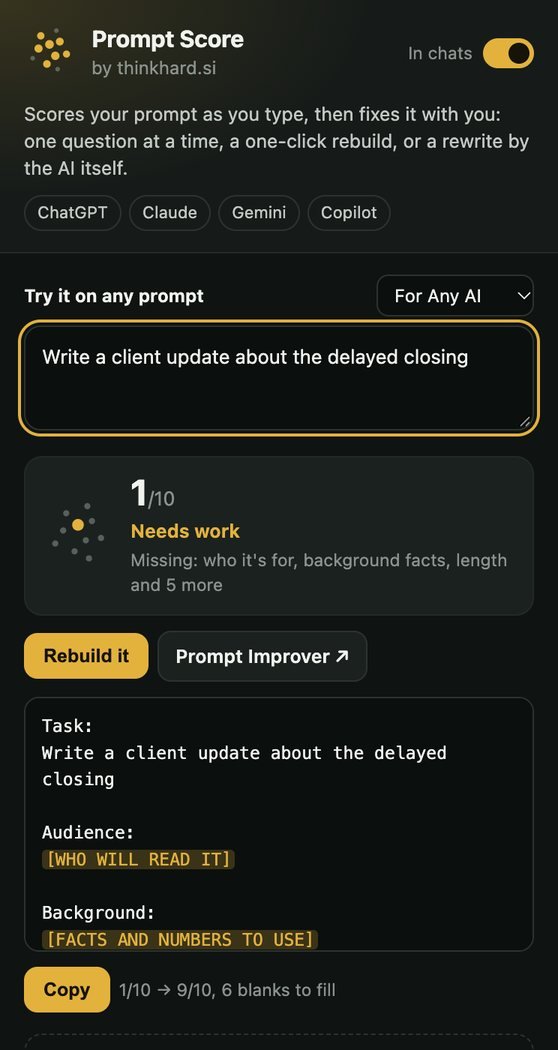
Prompt Score sits beside the message box in ChatGPT, Claude, Gemini, Copilot, Perplexity, Grok, Mistral and DeepSeek. Before you send, it scores your prompt and helps you fix it. It also warns you when a message holds client details. When the answer comes back, select it and press Check to see what the AI changed in your text and which facts to verify.


Fix the prompt, one question at a time
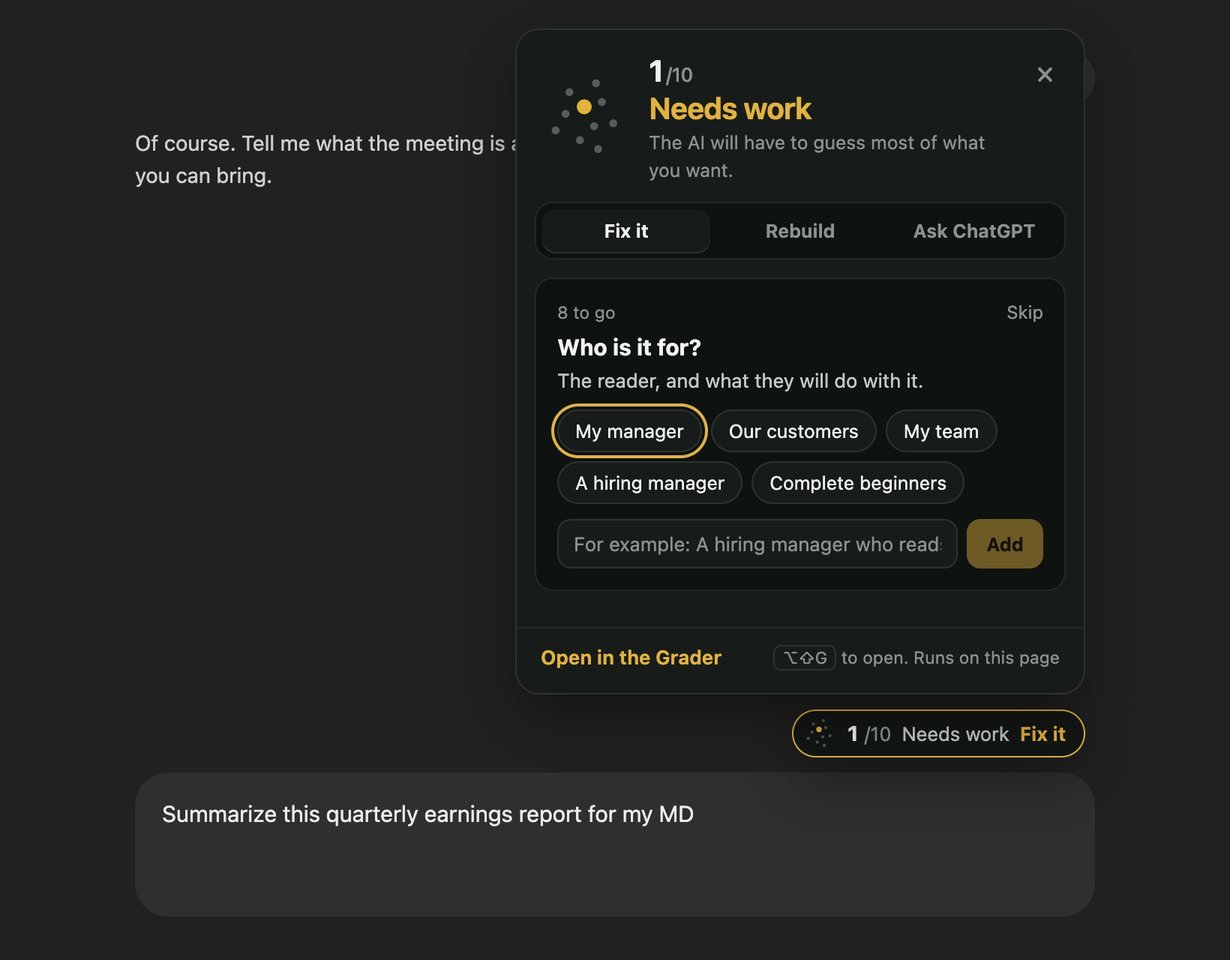
Click the score, or press Alt+Shift+G. It reads what kind of request you are making, from learning about a topic to an email, a plan or code, and asks only what that kind needs and your prompt does not already say. Tap a ready answer or type your own, and it goes into your message as a labeled line. Ten points light up as your prompt meets each check, the same checks as the Prompt Grader.
Or a better prompt in one click
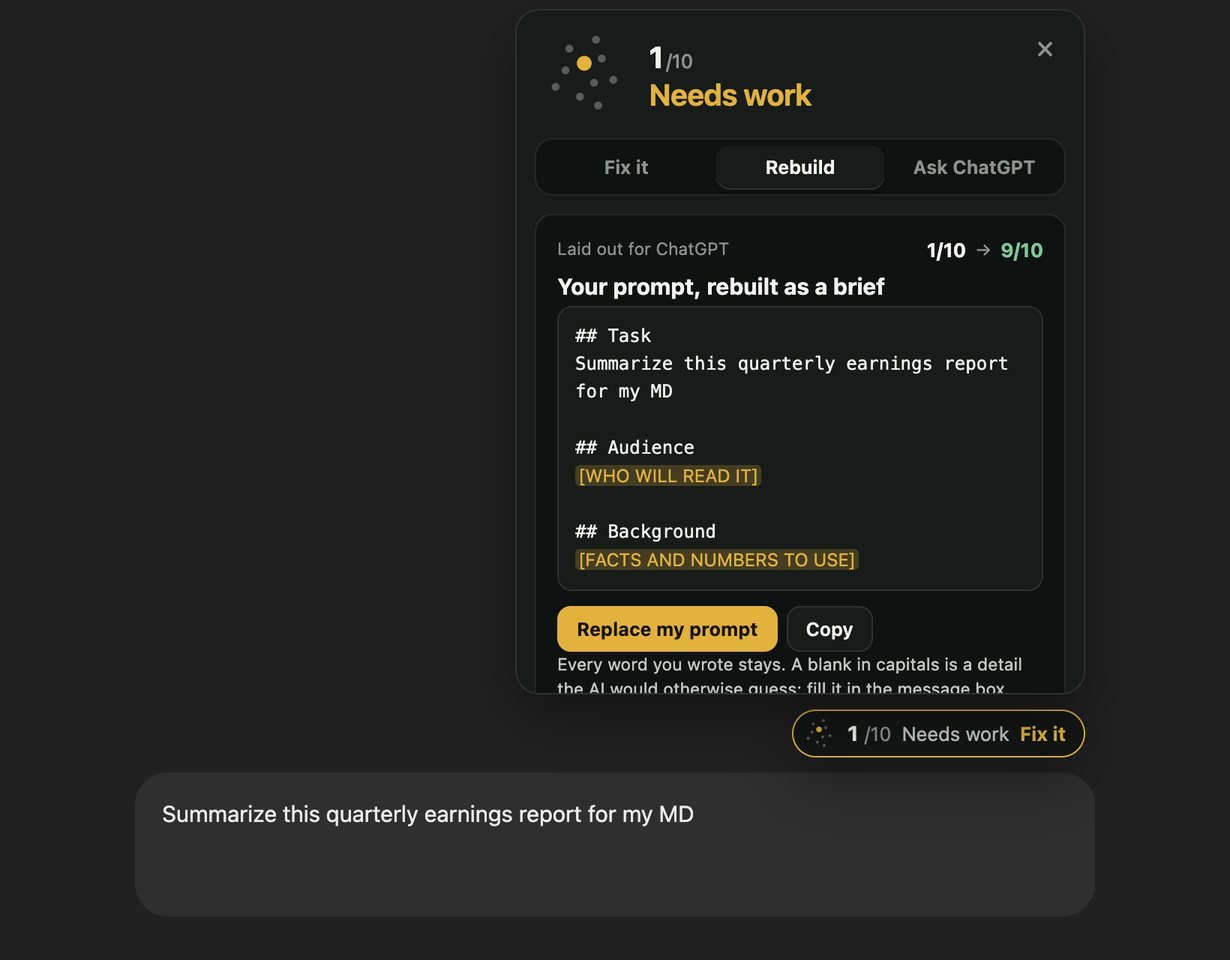
Better prompt lays your whole request out the way that AI reads best: XML tags for Claude, short headed sections for ChatGPT and Gemini. Every word you wrote stays. Sensible defaults fill what they can, each one named so you can change it, and a blank in capitals marks a detail only you know. Prefer the chat's own AI to do it? Ask wraps your prompt in a short request to rewrite it, with nothing to set up. Undo puts your message back.
Check the answer before you use it
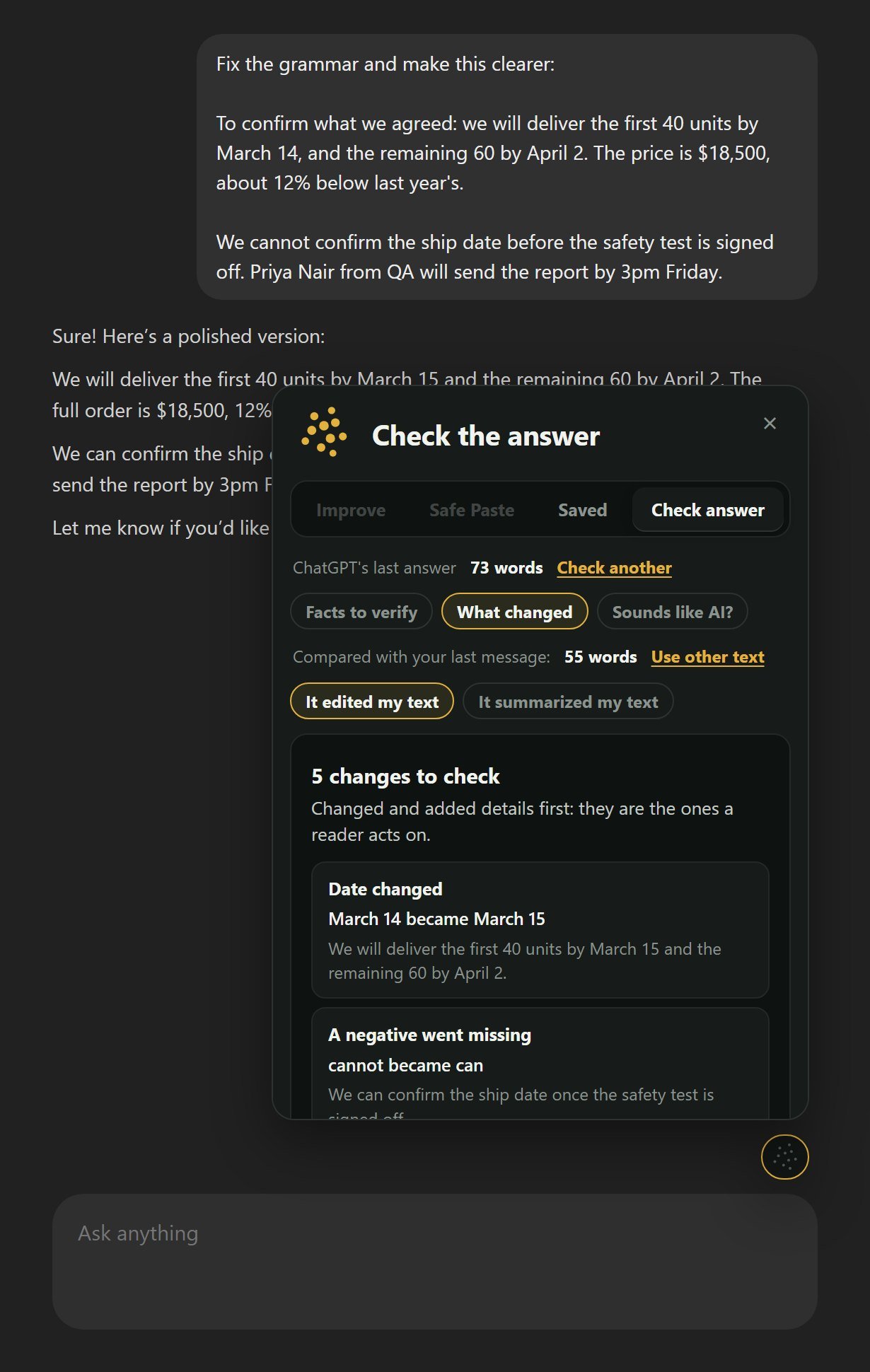
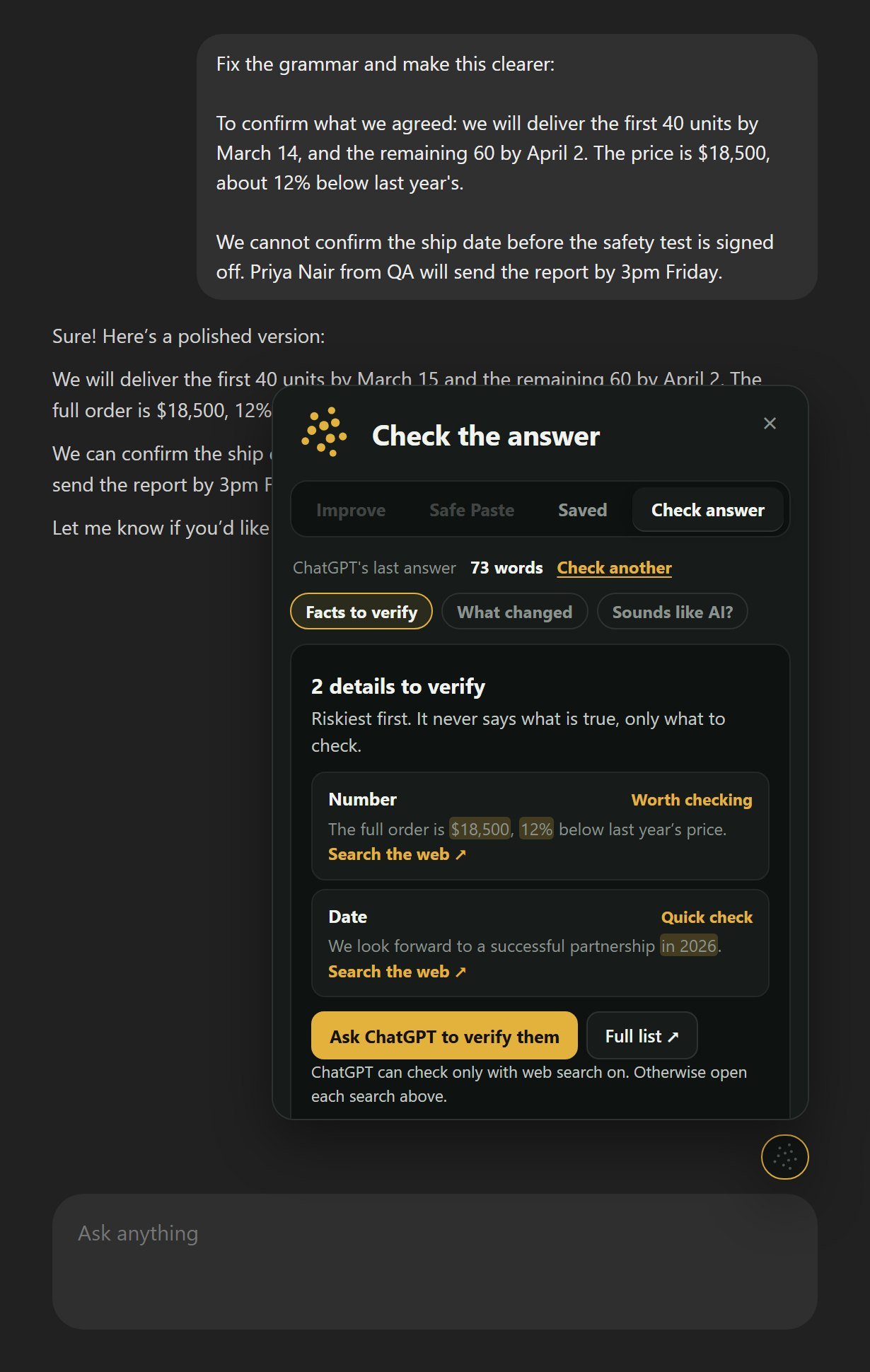
Select the answer, or the part that matters, and press Check in the bar that appears. Or open the panel in an empty box and it finds the last answer itself. What changed compares the answer with the text you sent: every date, number and name it moved, a "not" that came or went, a "should" that became "must", and sentences you never wrote. For a summary it shows each detail the original does not have. Facts to verify lists the figures, quotes, sources and links worth checking, riskiest first, and Sounds like AI? counts the habits that give a chatbot away. One button puts a request in the box to fix what it found.
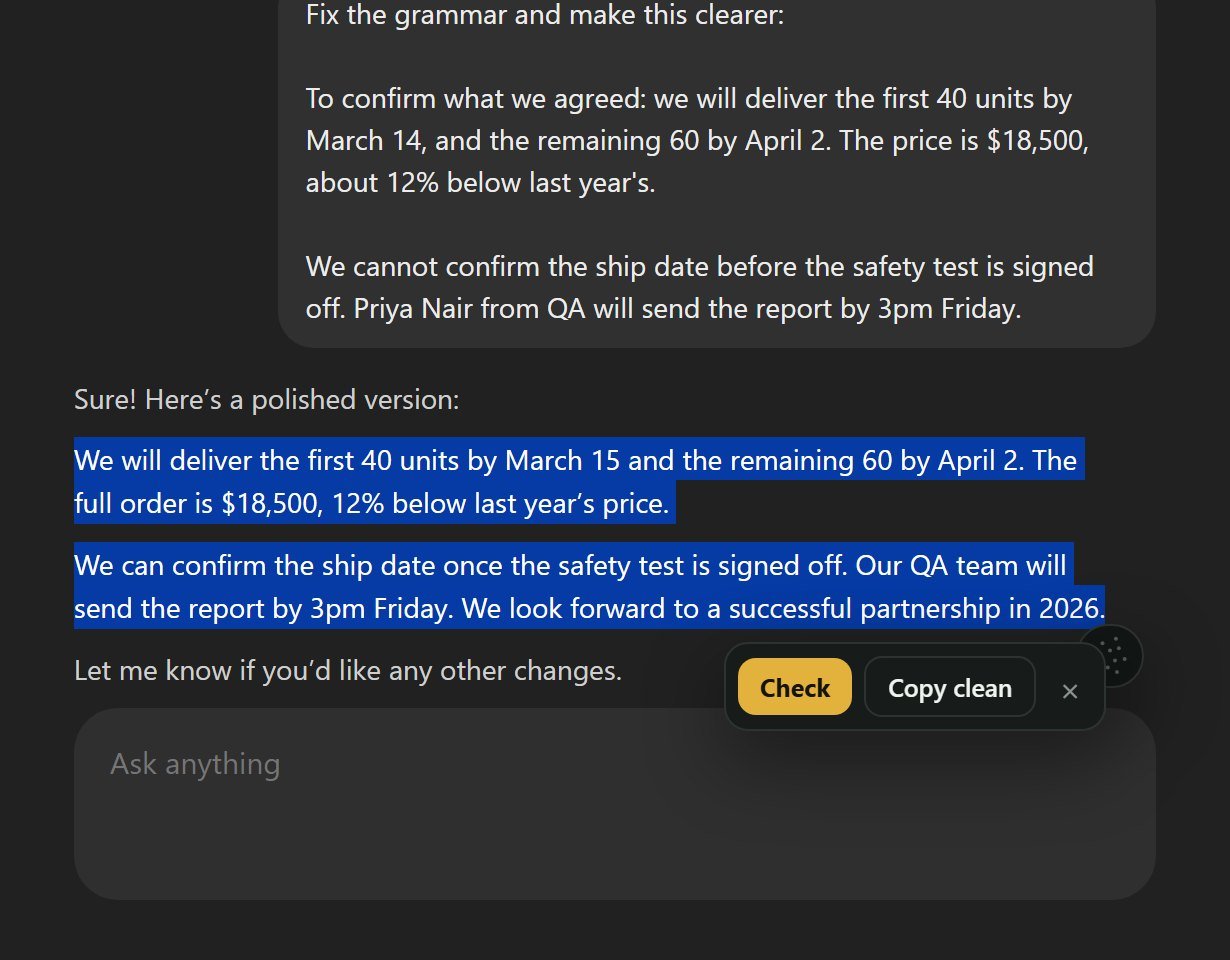
Paste it into Word or email, clean
Copy an answer from a chat and paste it into a document, and the chat's dark background, fonts and buttons often come with it. Select the answer and press Copy clean instead. Headings, lists, bold, links and tables stay; the chat's styling goes, and plain text gets a blank line between paragraphs. If Safe Paste hid client details in that tab, the copy has the real ones back.
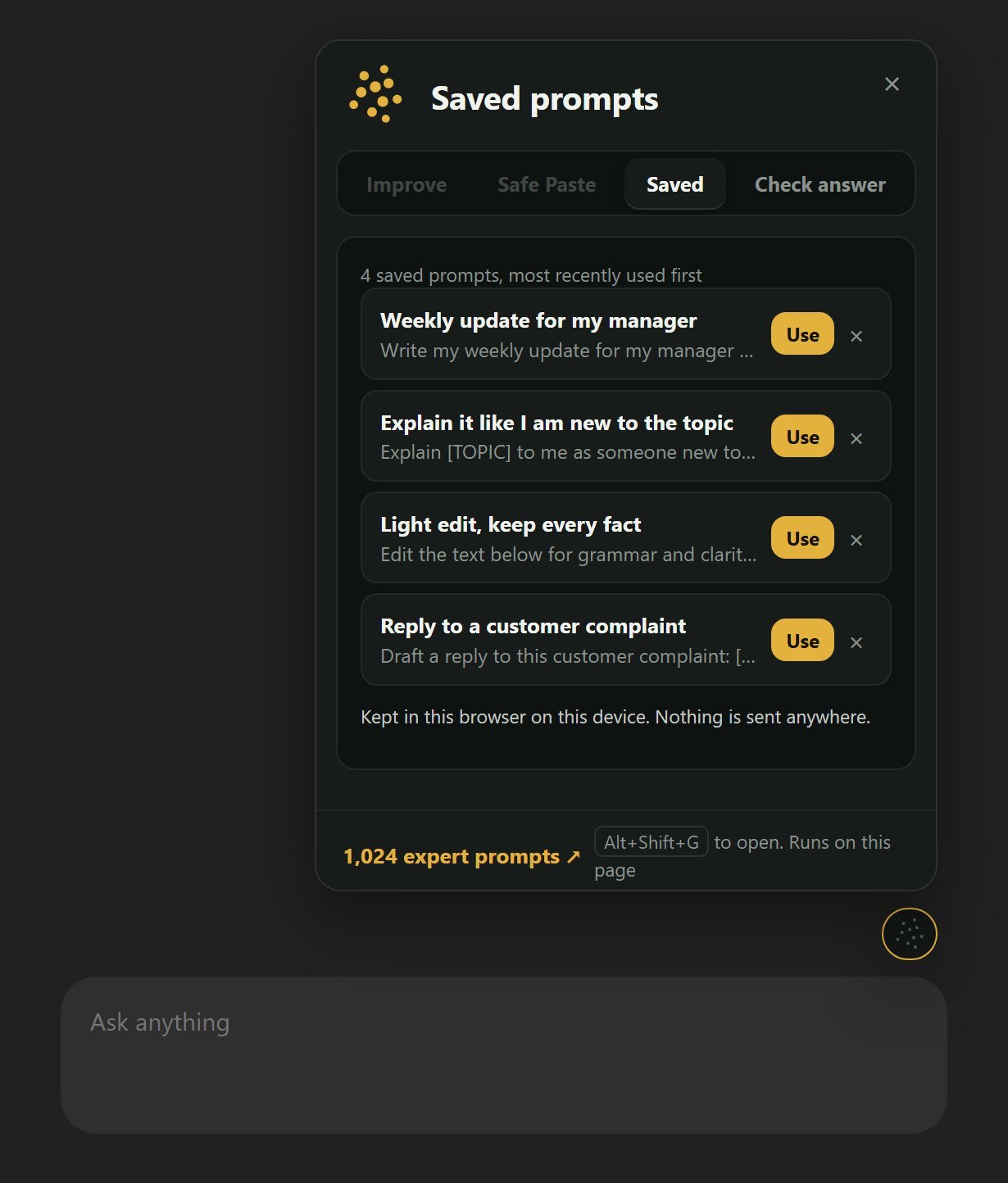
The prompts you reuse, one click away
When a prompt works, open the panel and press Save. Next time, click the small button in the empty message box and it goes in with one click, blanks in capitals and all, ready for the coach to help you fill them. Saved prompts stay in your browser on this device, most recently used first, with a search once you have more than a handful. For a head start, 1,024 expert prompts are free on this site.
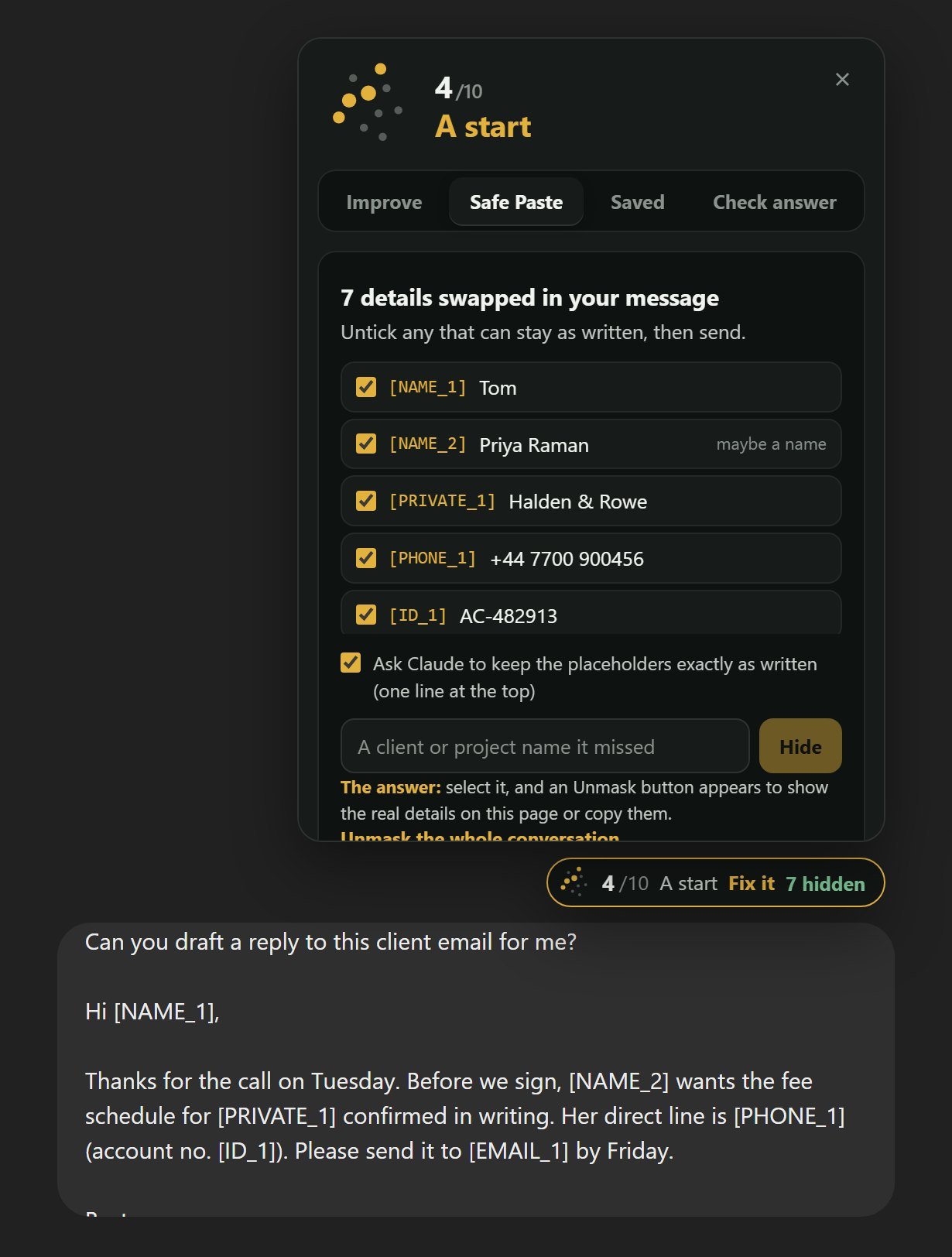
Client details stay out of the chat
Paste a client email, a contract clause or rows from a sheet, and an amber “private” button appears beside the score when the message holds email addresses, phone or account numbers, street addresses or names. Click it to open Safe Paste, check the list and press Swap: they become placeholders such as [NAME_1], so the AI never sees them. Each swap is listed: untick any that can stay, or add a client or project name the rules missed. A detail keeps the same placeholder in every message in that tab, so the AI can still tell people apart.
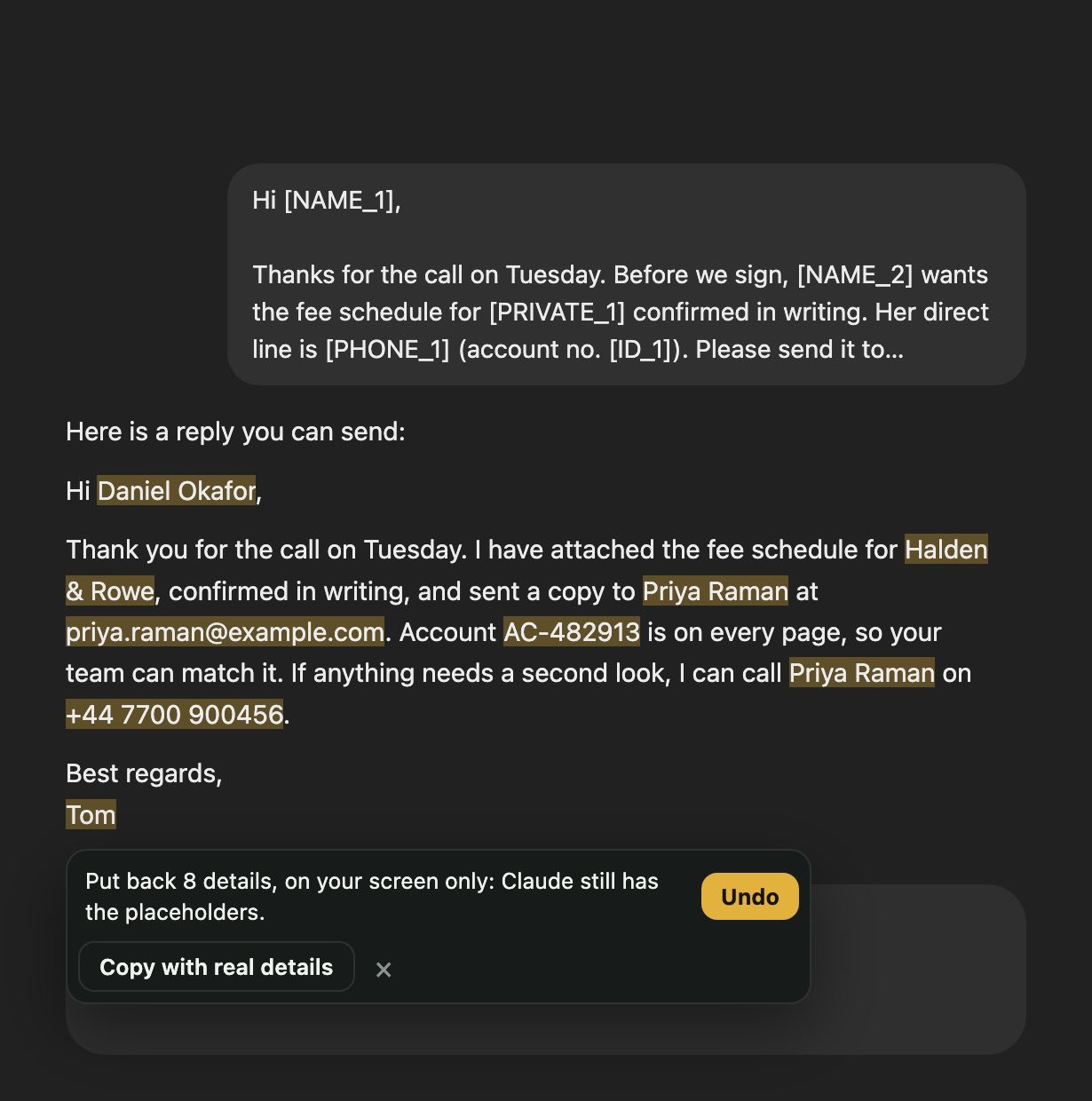
Put the real details back in the answer
Select the AI’s answer and press Unmask. The placeholders turn back into the real names and numbers, marked in gold, on your screen only: the AI’s copy keeps the placeholders. Or press Copy with real details and paste the answer straight into your email. What was swapped stays in that tab’s memory, and is forgotten when you close it. Safe Paste is also a free page on this site, for any app.
Private by design
Everything happens in the page you are on. The extension makes no network requests, collects nothing and has no account. It keeps its switches, and the prompts you save, in your browser; what Safe Paste swaps lives only in that tab’s memory until you close or reload it. Its permissions are storage, for those, and the right-click menu: select text on any page and right-click to improve it as a prompt, check whether an AI answer did what you asked, list what to fact-check, or see what sounds like AI. The privacy page says exactly what it does.
In Firefox: one step Firefox asks for
Firefox lets you decide which sites an extension may work on. After you add Prompt Score, open the chat site you use (ChatGPT, Claude, Gemini, Copilot, Perplexity, Grok, Mistral or DeepSeek) and:
- Click the extensions button (the puzzle piece) in the toolbar.
- Find Prompt Score and Improver, and allow it on this site. Choose “Always allow” so you are not asked again.
- Reload the page. The score appears beside the message box as you type.
That is the only permission it uses on those sites: to read the message you are typing so it can score it, and an answer you select when you press Check or Copy clean, all inside the page. It sends nothing anywhere.
Questions
Which sites does it work on?
ChatGPT, Claude, Gemini, Copilot, Perplexity, Grok, Mistral and DeepSeek, in Chrome and other Chromium browsers such as Edge, Brave and Arc, and in Firefox. In Edge, allow extensions from other stores first. The toolbar button scores a prompt you paste on any page.
What is new in version 1.6?
Check answer and Copy clean for what the AI wrote, Saved for the prompts you reuse, a warning on the score when a message holds client details, a small button in an empty message box, and four more sites: Perplexity, Grok, Mistral and DeepSeek. Version 1.6 reaches each browser as its store approves it, which usually takes from a day to a week.
Does Check answer send my chat anywhere?
No. It reads the text you select (or the last answer on the page) and the message you sent, and compares them in the page with the rules of Edit Check, Summary Check, the Fact Check List and the Robot-Speak Checker. Nothing is stored. A search link opens only when you click it, and a request to fix what it found goes to the AI only when you press send.
Is there a Firefox version?
Yes, the same extension, on Firefox Add-ons. Firefox asks you to allow an extension on each site: the first time, click the extensions button in the toolbar and allow Prompt Score on the chat sites you use.
Does it read my chats?
It reads the message you are typing, to score it, inside that page. When you press Check or Copy clean it reads the answer you selected, and Check also reads your last message, to compare them. With Safe Paste it reads an answer you press Unmask on, only to put the real details back on your screen. It never sends any of it to thinkhard.si or anyone else.
Where are saved prompts kept?
In your browser’s storage for the extension, on this device only. They are not synced and not sent anywhere. Delete one with its × button, or all of them from the toolbar popup’s settings.
Does Safe Paste catch every client name?
It finds email addresses, phone, card and account numbers and street addresses, and names where they usually appear: after Dear, Mr or Ms, in a sign-off, or written in full mid-sentence. The rules run on your device. A name in an unusual place, or a company name, can slip through, so read the list before you send and add any it missed. Once added, that name is hidden in every message in the tab.
Is it free?
Yes, with no account and no limits. It is part of thinkhard.si’s free tools for working with AI.
Can I turn parts of it off?
Click the toolbar button. In chats turns the whole thing off and on. Under Settings you can hide the Check bar on a selected answer and the small button in an empty message box.